Your robot has stopped. Maybe the wheels won’t turn, or it won’t talk back to you, and there’s nothing on it that says why.
In the robot from Learn Robotics Programming, 3rd Edition, each behaviour is its own service running on the Raspberry Pi. There’s also a safety mechanism: when some services fail, the MQTT last-will sends a stop signal to halt the robot. That’s what you want from a robot with motors, but it leaves a question: which service has failed, and why?
The tool for this is systemctl. It’s the entry point for diagnosing and controlling services on a robot, or on any systemd based Linux machine. This article shows you how to use it to check on services, start and stop them, and work out what went wrong.
It extends the material on systemctl in Appendix B of the book. Let’s get into it.
Contents
- The short version
- Overview of systemctl operations
- Overall shape of these commands
- Getting the status of a service
- Showing service dependencies and properties
- Listing specific units
- Starting and stopping services
- Enabling and disabling services
- Additional commands for scripting
- Get a robot like this
The short version
On my robot, the culprit turned out to be the voice agent - I don’t always plug the headset in. Here’s how I found it:
danny@learnrob3:~ $ systemctl --failed
  UNIT                LOAD   ACTIVE SUB    DESCRIPTION
● voice_agent.service loaded failed failed voice_agent

Legend: LOAD   → Reflects whether the unit definition was properly loaded.
        ACTIVE → The high-level unit activation state, i.e. generalization of SUB.
        SUB    → The low-level unit activation state, values depend on unit type.

1 loaded units listed.
--failed lists only the services that have failed, which is the question we started with. On the book’s robot, a failed service triggers an “all stop” over MQTT, so one failure, even a missing headset, can halt the whole robot.
--failed is shorthand for --state=failed, which is the form in the man page. It has been in systemd since 2011, long before Raspberry Pi OS used systemd, so it’s on any Pi robot image.
Then, to see more information about why it stopped:
systemctl status voice_agent.serviceThat shows the state and the last few log lines. With the headset plugged back in, I restarted it:
sudo systemctl restart voice_agent.serviceI’ve since made my voice agent more tolerant. With no input device, there’s no voice agent, but the robot keeps going. The book’s code still does the all stop.
That’s the whole loop: find, look, fix, restart. The rest of this article unpacks each step, and a few more commands that make the job easier.
Overview of systemctl operations
The important operations that I most commonly use with systemctl are:
- Finding what has failed
- Getting the status of a service
- Starting a service
- Stopping a service
- Restarting a service
| command | what it does |
|---|---|
| systemctl --failed | Lists only the units that have failed. The quickest answer to “what broke?”. See The short version |
| systemctl status distance_sensor_service | Displays the status of the distance sensor service. See Getting the status of a service |
| systemctl show -p Before mosquitto.service --value | Show the services that expect the mosquitto service to start before them. Showing service dependencies and properties |
| systemctl list-units distance_sensor_service.service launcher_service.service | Summarises a few services. Listing specific units |
| sudo systemctl start distance_sensor_service | Starts the distance sensor service. See Starting and stopping services |
| sudo systemctl stop distance_sensor_service | Stops the distance sensor service. See Starting and stopping services |
| sudo systemctl restart distance_sensor_service | Restarts the distance sensor service. See Starting and stopping services |
| sudo systemctl enable distance_sensor_service | Enables the distance sensor service to start automatically at boot. See Enabling and disabling services |
| sudo systemctl disable distance_sensor_service | Disables the distance sensor service from starting automatically at boot. See Enabling and disabling services |
The distance_sensor_service can be swapped for the relevant service, for example the inventor_hat_service. You only need to type a few characters of the name and hit tab, Linux on the Raspberry Pi will try to auto-complete the rest of the service name.
Overall shape of these commands
All of these commands have a pattern.
systemctl <operation> <service_name>
Breaking down this pattern:
- The command
systemctlcan be read asSystemD Control, as it controls and inspects the state of systemd units (like services). - We then have an
<operation>, or a subcommand, what we want to specifically do, what are we looking for here? - Then we have the
<service_name>, which is the name of the service we want to operate on. This tells systemd exactly which unit we are referring to.
Commands that only read information, like status, show, list-units and the is-* commands, don’t need sudo. Commands that change things, like start, stop, restart, enable and disable, do. Put sudo - or super user do - in front of those, because systemd is managed by the root user.
There may be additional options or flags that can be used with these commands, but the basic structure remains the same.
Getting the status of a service
So you can’t tell if a service is doing what it should? Or if it’s even alive. This is where you can check the status of a service. The command is:
systemctl status <service_name>This will show a useful report with the service name, the status of the service, and the last few lines of output from the service. This is useful for debugging and checking if a service is running correctly.
An example output (I ran this one with sudo, which isn’t needed for reading status, but doesn’t hurt):
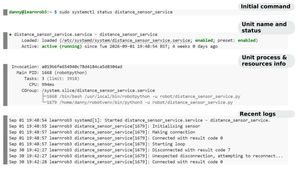
As the diagram shows, there are a few major sections to this, after your initial command is run:
- The unit name and status. This shows if the unit is loaded and what file it is loaded from. It shows if the service is enabled (starts again next time the system is reset). This section shows if the service is active, and how long it has been active for.
- The unit process & resource information. This section shows a main process ID for the service, and the command it’s running - in this case the “robotpython” bash script. It shows how many tasks this process has running, and the CGroup section shows what they are - beyond the main “robotpython”, there’s the “python3” child process in this case. It also shows how much time on the CPU has been consumed by the service. Contrast 994ms, a bit less than a second of CPU time, with 4 weeks running. It’s not using the CPU much, and mostly waiting.
- The recent log entries. This section shows the last few lines of output from the service, which can be helpful for debugging and understanding the current state of the service. Especially helpful if the service has died, as it shows a glimpse of errors. Each line starts with the unit name and the process ID that wrote it.
This is not a full log though. The journalctl -u <service_name> command can be used to view the full log for the service. Add -e to jump straight to the end (the newest entries), or -f to follow the log live while you try things:
journalctl -u voice_agent.service -eShowing service dependencies and properties
When trying to debug services, the order they start in can be important. A unit can specify “Before” and “After” parameters. For a given service, we can show what things depend on it, that is, this service must start before them:
danny@learnrob3:~ $ systemctl show -p Before mosquitto.service --value | tr ' ' '\n'
launcher_service.service
multi-user.target
shutdown.target
config_store.service
web_server.service
voice_agent.service
distance_sensor_service.service
wheel_control_service.service
inventor_hat_service.service
The command prints a single long line of space separated names. I’ve added | tr ' ' '\n' here to put each on its own line so it’s easier to read.
What this shows is a list of units, for example inventor_hat_service.service, which must start after the mosquitto.service.
Breaking this down, the show command has:
-p Before: This specifies that we want to show the “Before” property of the unit, which lists the units that must start after this one. We could use “After”, “Type”, “Restart” or other properties of the unit as needed.mosquitto.service: This is the name of the service we are querying.--value: This option ensures that only the value of the property is shown, without the property name.
I optionally add “–no-pager” to prevent the output from being piped through a pager like less if it’s more than one line. This is essential if you want to capture or process the output programmatically.
Note there’s a specific systemctl list-dependencies <unit name> command, however, I find it less useful than directly querying the “Before” and “After” properties with systemctl show.
Listing specific units
You can list, and summarise specific units by providing their names to the systemctl list-units command. For example:
$ systemctl list-units distance_sensor_service.service launcher_service.service
  UNIT                            LOAD   ACTIVE SUB     DESCRIPTION
  distance_sensor_service.service loaded active running distance_sensor_service
  launcher_service.service        loaded active running launcher_service

Legend: LOAD   → Reflects whether the unit definition was properly loaded.
        ACTIVE → The high-level unit activation state, i.e. generalization of SUB.
        SUB    → The low-level unit activation state, values depend on unit type.

2 loaded units listed. Pass --all to see loaded but inactive units, too.
To show all installed unit files use 'systemctl list-unit-files'.
As the output recommends, you want to use the --all option if you need to see loaded but inactive units as well. This shows units that are currently dead.
One useful way to use this, is to take the list of before services for a particular unit and then check the status of those services. You can take the output from the show command in the previous section and use it in this list-units command to get a quick overview of their current state:
danny@learnrob3:~ $ systemctl list-units --all $(systemctl show -p Before --value mosquitto.service)
  UNIT                            LOAD   ACTIVE   SUB     DESCRIPTION
  config_store.service            loaded active   running config_store
  distance_sensor_service.service loaded active   running distance_sensor_service
  inventor_hat_service.service    loaded active   running inventor_hat_service
  launcher_service.service        loaded active   running launcher_service
● voice_agent.service             loaded failed   failed  voice_agent
  web_server.service              loaded active   running web_server
  wheel_control_service.service   loaded active   running wheel_control_service
  multi-user.target               loaded active   active  Multi-User System
  shutdown.target                 loaded inactive dead    System Shutdown

Legend: LOAD   → Reflects whether the unit definition was properly loaded.
        ACTIVE → The high-level unit activation state, i.e. generalization of SUB.
        SUB    → The low-level unit activation state, values depend on unit type.

9 loaded units listed.
To show all installed unit files use 'systemctl list-unit-files'.
In this case, it shows all the robot services. Note that --all revealed that the voice_agent.service has currently failed (due to not connecting the headset). This quick overview can really help in debugging multiple services, and it shows the healthy ones next to the broken one, so you can see how the whole robot is doing at a glance.
This construct uses a few shell script elements. The $(...) syntax runs another command and substitutes its output where the brackets are. In this case, it takes the output of systemctl show -p Before --value mosquitto.service and uses it as arguments for the systemctl list-units --all command.
Starting and stopping services
It’s a common task to start and stop services on a Linux system. You can use the systemctl start and systemctl stop commands to control the state of a service. For example:
danny@learnrob3:~ $ sudo systemctl start voice_agent.service
danny@learnrob3:~ $ sudo systemctl stop voice_agent.service
The first attempts to start the voice_agent.service, while the second stops it if it is currently running.
Reasons to stop a service may be to free up resources (like an I2C bus device) or to troubleshoot issues without affecting other running services.
You can use the restart command to stop and then start a service in one step. For example:
danny@learnrob3:~ $ sudo systemctl restart voice_agent.serviceIf you have loaded new code, or changed the state of the robot (perhaps plugging in the required headset), you may need to restart a service to apply the changes.
It’s important to note that starting/stopping a service does not affect the state of the service when the system reboots. For that you need the next section.
Enabling and disabling services
For a service to start when the Raspberry Pi or Linux system starts, you need to enable the service using the systemctl enable command. For example:
danny@learnrob3:~ $ sudo systemctl enable voice_agent.serviceTo prevent a service from starting automatically at boot, you can use the systemctl disable command. For example:
danny@learnrob3:~ $ sudo systemctl disable voice_agent.serviceIf I am using deployment tools like Ansible/Pyinfra to manage my robot services, I can automate the enabling and disabling of services across multiple devices, ensuring consistent configuration without manually running systemctl commands on each robot.
Additional commands for scripting
Systemctl has a couple of small but useful commands for scripting and automation. For example, you can check the state of a service with:
danny@learnrob3:~ $ systemctl is-active distance_sensor_service.service
active
danny@learnrob3:~ $ systemctl is-active voice_agent.service
failed
This prints the state of the service - active if it is running, otherwise something like failed, inactive or activating. It also sets the bash exit code: 0 if the service is active, and non-zero if it is not. That makes it ready to use in an if. Adding --quiet stops it printing, so you only get the exit code:
if systemctl is-active --quiet voice_agent.service; then
    echo "Voice agent is running"
else
    echo "Voice agent is not running"
fi
You can check the opposite, if it has failed, with:
danny@learnrob3:~ $ systemctl is-failed voice_agent.service
failed
danny@learnrob3:~ $ systemctl is-failed distance_sensor_service.service
active
Be careful here, as the logic is flipped. It still prints the current state, but the exit code is 0 if the service has failed, and non-zero if it has not.
Another useful command is systemctl is-enabled to check if a service is set to start at boot:
danny@learnrob3:~ $ systemctl is-enabled distance_sensor_service.service
enabled
Get a robot like this
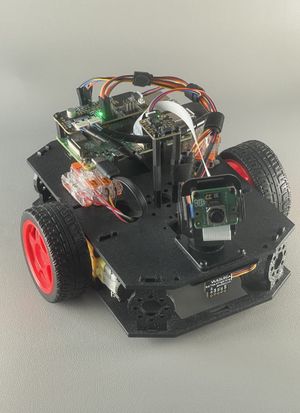
These services come from the robot built in Learn Robotics Programming, 3rd Edition. In it you will:
- Specify and order robot parts.
- Assemble them into a robotics platform.
- Program the robot to perform tasks.
- Work with sensors like distance sensors arrays, cameras, headsets, an inertial measurement unit, and encoders.
- Work with algorithms for autonomous robot behaviour programming in Python. Including obstacle avoidance, PID and Monte Carlo Localisation.
- Integrate AI models for face detection, speech recognition and speech synthesis.
- Learn and practice essential Linux skills, and automate them with PyInfra.
If you’d like more robot debugging tips as I write them up, follow along on Bluesky, Mastodon, Threads, LinkedIn or Facebook, or grab the RSS feed.